# New in Version 13
---
- [Multiple Selection Editing](#multiple-selection-editing)
- [More Large File Support](#large-files)
- [Multiple File Encoding Conversion](#encoding-conversion)
- [Quick Launch](#quick-launch)
- [Plug-in Updates](#plugins)
- [Other New Features](#other-features)
---
## Multiple Selection Editing {#multiple-selection-editing}
---
```gallery
images:
- src: /media/2013/07/emeditor13_multi_sel1.webp
caption: Multiple Selection
- src: /media/2013/07/emeditor13_multi_sel2.webp
caption: Multiple Selection Editing
- src: /media/2013/07/emeditor13_findall2.webp
caption: Find All in the context menu
- src: /media/2013/07/emeditor13_findall.webp
caption: Find All in the Find dialog box
- src: /media/2013/07/emeditor13_add_next_occurrence1.webp
caption: Add Next Occurrence
```
### With EmEditor’s multiple selection editing, you can quickly make changes at multiple locations in your document simultaneously–use it to rename variables, enter data, and generally make your life easier.
EmEditor allows you to select multiple locations within a document. To make multiple selections, after making one selection, make another selection with the mouse while pressing the CTRL key. Alternatively, you can press the F8 key, move the cursor to extend the selection, press the F8 key again to finish the selection, move the cursor again to go to the next selection position, and repeat this procedure until you make all selections. Moreover, the **Add Next Occurrence** command (CTRL+R) will find the same text as the word at the cursor. The **Add Next Next Occurrence** command will skip the next occurrence, but add the occurrence after the next one. The **Select All Occurrences** command (CTRL+SHIFT+A) will select all the occurrences.
After you make multiple selections, you can type new text to replace all the selections at once. Pressing the BACKSPACE key removes the last character in each selection. Moreover, you can use many conversion commands against the selections.
The **Find All** button in the **Find** dialog box allows you to select all the occurrences of your search string.
With the **Switch Starting Point and Ending Point** command (SHIFT+F8) you can move the cursor to the selection starting point by pressing SHIFT+F8, and then adjust the selection’s starting and ending points for even easier editing.
---
## More Support for Large Files {#large-files}
---
EmEditor can now open a file containing a very long line (longer than 4GB). When EmEditor loads a file containing a very long line, it will split the long line into several lines, but it will combine them when saving the file.
Pasting very large text via the Clipboard became more stable by dynamically creating a temporary file.
The various **Sort** commands and the **Delete Duplicate Lines** command were also optimized for large files, and there is no longer a limitation of size to run these commands. As you can see from an example below, v13 became 3 to 7 times faster than v12 in the **Sort** and **Delete Duplicate Lines** commands when using very large files.
*141MB 1,750,000 lines, Sort A to Z **16MB 200,000 lines. Windows 8 (64-bit), Core i7 870, 16GB RAM, EmEditor Professional v12.0.11 (64-bit) and v13.0.0 (64-bit). | Version 12 | Version 13 |
|---|
| Sort* | 28 seconds | 7.8 seconds |
|---|
| Delete Duplicate Lines** | 53 seconds | 7.2 seconds |
|---|
The new version also allows you to combine or split very large files easily. The new **Split Current Document to Several Files** command allows you to split the current document into several files either every user-specified number of lines, or before every bookmarked line. It also allows you to specify a header and/or footer to each separated file. The new **Combine Documents into a Single File** command allows you to combine multiple documents into one file.
```gallery
images:
- src: /media/2013/07/emeditor13_split.webp
caption: Split Files Wizard
- src: /media/2013/07/emeditor13_combine.webp
caption: Combine Files Wizard
```
---
## Multiple File Encoding Conversions {#encoding-conversion}
---
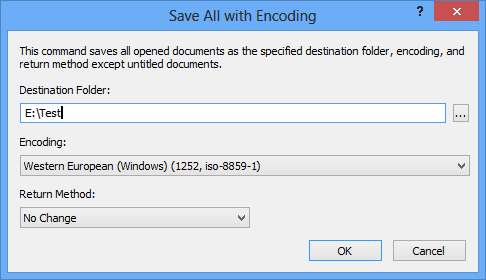
### This feature allows you to convert the encodings of multiple files at once using one easy command.
EmEditor allows you to convert encodings of many files at the same time. To do this, first open all files that you want to convert with EmEditor, either by pressing CTRL+O to open the Open dialog and selecting multiple files, or by specifying “emeditor.exe \*.\*”, for example, in the Command Prompt window. Then selecting **Save All with Encoding** on the File menu will allow you to save all documents with a specified encoding.
---
## Quick Launch {#quick-launch}
---
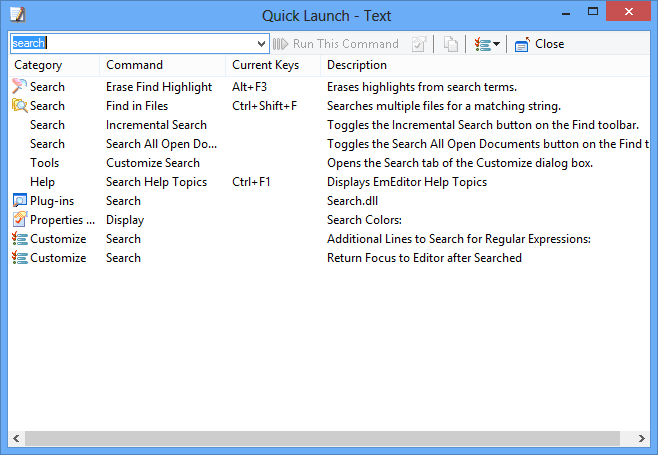
### With the Quick Launch feature, you can access any command, plug-in, macro, external tool, recently used file, folder, font, opened document, and more with just a few keystrokes. Just type a partial keyword into the Quick Launch box (CTRL+Q) and EmEditor will find what you’re looking for.
The **Quick Launch** command allows you to open a dialog box where you can type a partial keyword to search all the commands. A list box is quickly filled with searched commands, and then you can select which list item you want to launch. The **Quick Launch** dialog box will search all EmEditor commands, plug-ins, macros, external tools, recently used files, folders, fonts, opened document file names, and much more. Access Quick Launch *quick*ly with CTRL+Q.
---
## Plug-in Updates {#plugins}
---
### HTML Bar plug-in
- The large-size toolbar is now available.
### Outline plug-in
- Optimized for speed when displaying outline as guide.
### Projects plug-in
- Solution loading operates much more quickly, as projects are not loaded until they are used.
- The **Reload** command was added in the context menu – **Solution** sub menu. Also, the **F5** key was assigned as the Reload command.
- The Projects plug-in now supports Visual Studio nested projects.
---
## Other New Features {#other-features}
---
### New Features
- The Comment/Uncomment commands now work as begin/end comments (for example, /\* … \*/) in addition to line comments. EmEditor will choose begin/end comments when the middle of a line is selected.
- A workspace now saves all bookmarks automatically. Bookmarks will no longer be erased when reloading files.
- When creating a new file by specifying a non-existing file name in the Open dialog box, EmEditor will now create a zero-byte empty file.
- The Help for each dialog box now contains information about all the controls without needing to navigate through branch items. The Help button was deprecated, and pressing the **?** button or the **F1** key will bring up the pertinent Help.
- A progress bar and a percentage indicator are now displayed in the progress window.
- The new **Fast Binary Comparison** allows for faster sort. Clearing the **Stable Sort** also allows for faster sort when stable sorting is not necessary.
- **Find in Files** dialog box now shows all associated file extensions of the current configuration in the **File Types** text box when **Current File Type** is selected from the **\>** menu.
- High-DPI settings supported.
- The new version allows you to select text by mouse outside of the text area specified by the **Narrowing** command.
- The installer now allows you to add the Context Menu to Windows Explorer, and to have EmEditor check the updates.
- The installer command line options were added: NOCHECKUPDATES, NOCONTEXTMENU, NODESKTOP, NOIEEDITOR, NOIEVIEW, NOPATH, NOSHORTCUT, NOTRAYICON, and NOTXT.
- EmEditor Free is back! This time, EmEditor Free is the same executable file as EmEditor Professional. After you try EmEditor Professional for 30 days, you can still use EmEditor Free without purchasing the product for personal use only.
- When a user clicks on the left edge or the line numbers, a menu related to bookmarks appears now.
### New options
- The **Save All with Encoding** dialog box
- The **Configuration Associations** dialog box
- The **Split Current Document to Several Files** wizard
- The **Combine Documents into a Single File** wizard
- The **Quick Launch** dialog box
- The **Enable Multiple Selections**, **Prompt when No Undo Infomation is Available**, and the **Prompt when EmEditor cannot Open the Clipboard** check boxes in the **Edit** tab of the **Customize** dialog box
- The **Fast Binary Comparison** check box, the **Stable Sort** check box, and the **Maximum Memory Size** text box in the **Sort** tab of the **Customize** dialog box
- The **Use Double Buffering** check box in the **View** tab of the **Customize** dialog box
- The **Memory Size**, **L1 Cache Size**, **L2 Cache Size**, and **percentage of physical memory in use** items were added to the list in the **Status** tab of the **Customize** dialog box
- The **Memory Size**, **L1 Cache Size**, and **L2 Cache Size** text boxes in the **Advanced** tab of the **Customize** dialog box.
- The **Selected Text or Word at Cursor** item in the **\>** drop-down menu by the **Find** text box in the **Find** dialog box
- The **Current File Extension** item in the **\>** drop-down menu by the **File Types** text box in the **Find in Files** dialog box
- The **Indent only at New Lines** check box in the **Tab/Indent** dialog box
- The **Set as Default** button and the **Associations** button in the **Define Configurations** dialog box
- **$(AppDir)**, **$(AppDrive)**, and **$(Clipboard)** parameters were added to the menu displayed when the **\>** button is clicked in the **External Tool Properties**.
- The **Prompt before Deleting an Old File when Renaming** check box was added to the **Save Details** dialog box.
- The **Skip Empty Lines** and **Restart Numbering after Empty Lines** check boxes were added to the **Insert Numbering** dialog box
- The **CTRL + Click to Select a Word** check box was added to the **Mouse** tab of the **Customize** dialog box.
- The **Match Case** and **Match Whole Word** check boxes were added to the **Search** tab of the **Customize** dialog box. These options apply to the **Add Next Occurrence** and **Select All Occurrences** commands.
- The **Prompt when End of Document is Reached** check box was added to the **Search** tab of the **Customize** dialog box.
- The **Save Settings** check box was added to the **Open** dialog box.
- The **Title** check box and text box in the **Marker List** tab of the **Customize Markers** dialog box.
- The **Clicking a File Name in Quotes Opens the File** check box was added to the Link tab of configuration properties.
- The **MinimalZen** theme was added to the **Display** tab of configuration properties. The MinimalZen was developed by ToadLoading.
```gallery
images:
- src: /media/2013/08/emeditor13_bookmark_menu.webp
caption: Bookmarks menu
- src: /media/2013/08/emeditor13_comment.webp
caption: Begin/end comments
- src: /media/2013/07/emeditor13_configuration_associations.webp
caption: Associate files types with configurations
- src: /media/2013/08/2.webp
caption: Insert Numbering dialog.
- src: /media/2013/08/3.webp
caption: How to sort
- src: /media/2013/08/4.webp
caption: Customize View
- src: /media/2013/08/5.webp
caption: The Memory Size, L1 Cache Size, and L2 Cache Size text boxes
- src: /media/2013/08/7.webp
caption: The Match Case, Match Whole Word, and The Prompt when End of Document is Reached check box
- src: /media/2013/08/8.webp
caption: The Clicking a File Name in Quotes Opens the File check box
- src: /media/2013/08/10.webp
caption: Tag Format can be specified with regular expressions (Customize > Edit > Tag Format)
- src: /media/2013/07/emeditor13_display_minimalzen.webp
caption: A theme specifying a combination of colors can be selected. The Transparent option was added to the text and background colors.
- src: /media/2013/07/emeditor13_minimalzen.webp
caption: EmEditor’s “MinimalZen” Theme
- src: /media/2013/08/9.webp
caption: The Save Settings check box
- src: /media/2013/08/6.webp
caption: The Set as Default button and the Associations button in the Define Configurations dialog box
```
### New commands
- Select All Occurrences
- Add Next Occurrence
- Add Next Next Occurrence
- Split Current Document to Several Files
- Combine Documents into a Single File
- Quick Launch
- Save All with Encoding
- Downgrade
- Upgrade
- Repeat Last Command
- Associate Configuration
- Select Beginning of Lines
- Select Ending of Lines
- Switch Starting Point and Ending Point
- Select Bookmarked Lines in This Document
- Cut Bookmarked Lines in This Document
- Copy Bookmarked Lines in This Document
- Find All (Marker toolbar right-click menu)
### Macro new features
- The **Count** property was added to the **Selection** object.
- The **PromptRename** property was added to the **FileSaveProp** object.
- The **OpenFileInQuotes** property was added to the **LinkProp** object.
- The **eeFindSelectAll** flag was added to the **Find** method.
### Plug-in API new features
- EE_GET_MULTI_SEL message (Editor_GetMultiSel inline function)
- EI_GET_CMD_LIST_SIZE flag (EE_INFO message)
- EE_SET_OUTLINE_ARRAY messsage (Editor_OutlineArray inline function)
- OUTLINE_ARRAY_INFO structure
- EVENT_UI_CHANGED event